2016年9月20日星期二

climate changes temperature data BY R

#R# #data#

This is a flashback post, I was working on species distribution shifts over the last 40 years last summer and recently Rémi Genevest contacted me asking me how I managed to import the CRU TS 1.2 dataset into R. As always a more readable version of the code can be found here.
At that time I used a not very elegant coding involving SpatialPixels and SpatilGridDataFrame, scrolling back to the question I asked to the R-sig-geo mailing list back then I stumbles across the answer from Robert Hijmans that I did not take into account at that time. Now one year after I found his answer going in the right direction and made some heavy change in the coding.
#reading in CRU files into R
library(raster)

#for the CRU TS 1.2 download the .zip at http://www.cru.uea.ac.uk/cru/data/hrg/timm/grid/CRU_TS_1_2.html

#the raster we get at the end, the data are monthly for all the years between 1901 and 2000
temp<-brick 10="" 1914="" 1918="" a="" add="" all="" all_dat="" an="" and="" apply="" ar="" are="" as.numeric="" aster="" attribute="" ay="" between="" bottom="" box="" by="" c="" calc="" cbind="" ce="" cell="" cellfromrowcol="" cells="" celsius="" column="" columns="" corresponding="" cru="" data="" dataset="" datum="WGS84" defined="" degree="" divide="" each="" eb="" ec="" ep="" every="" example="" first="" for="" format="" from="" function="" get="" gsub="" home="" in="" into="" kt="" layers="" line="" lionel="" list="" mat="" matrix="" mean="" month="" names="" ncol="1)" now="" nrows="228,ncols=258,xmn=-11,xmx=32,ymn=34,ymx=72,nl=1200,crs=CRS(" numb="" number="" numbered="" numbers="" obs.1901-2000.tmp="" ocuments="" of="" ov="" paste="" plot="" pr="" pre="" proj="longlat" put="" raster="" rasters="" rep="" reverse="" row="" rownr="mat[,2],colnr=mat[,1])" rows="" scan="" seq="" since="" skip="5,what=" temp="" temperature="" the="" these="" they="" times="5),rep(1914:1918,each=3),sep=" to="" top="" turn="" two="" ug="" ul="" un="" using="" values="" which="" winter="" winter_1418="" with="" x="" xs="" year="" years="" ys-113.5="" ys-="" ys="" ys_inv="">
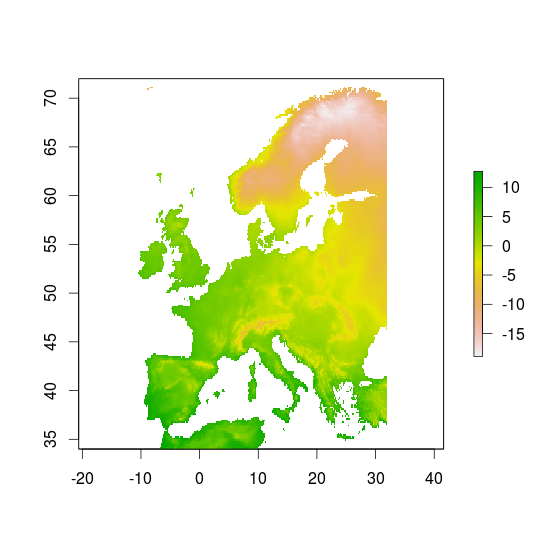
raster1
#the standard deviation in temperature for the years 1901 and 2000
sd_100<-stack calc="" grep="" names="" plot="" pre="" sd="" sd_100="" temp="">
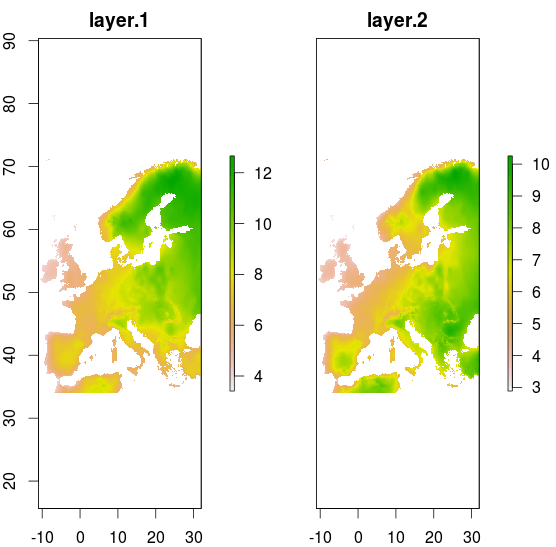
raster2
The only mathematical magic involve here is changing the row numbers. Then from this huge dataset we can do lots of neat thing, like we can see how cold did the soldier of the first world war were (first raster plot), or we can look at changes in standard deviation in temperature between the year 1901 and 2000 after one century of climate change.
If you use such data in your work do not forget to cite the owners: Mitchell, T.D., Carter, T.R., Jones, P.D., Hulme,M., New, M., 2003: A comprehensive set of high-resolution grids of monthly climate for Europe and the globe: the observed record (1901-2000) and 16 scenarios (2001-2100). Journal of Climate: submitted
And if you have some knowledge of similar dataset (monthly values over Europe) at a finer spatial resolution please contact me!

U.S., China to step up cooperation on North Korea

2016年9月11日星期日

http://kg.qq.com/share.html?s=ODz7R7yZQQqj

No matter how many times I watch this episode I get teary-eyed. The actor portrays Vincent so well and the scene where he visits his gallery is surprisingly moving.


 http://kg.qq.com/share.html?s=ODz7R7yZQQqj

abroad abroad abroad songs from my friends~amzaing me~

2016年9月5日星期一

Work for today

The files in this archive have been created from OpenStreetMap data
and are licensed under the Open Database 1.0 License. See
www.openstreetmap.org for details about the project.

This file contains OpenStreetMap data as of 2016-08-02T19:29:02Z. Every day
a new version of this file will be made available at:

http://download.geofabrik.de/osm/asia/china-latest.shp.zip

Geofabrik also makes extended shapefiles to order; please see
http://www.geofabrik.de/data/shapefiles.html for details and example
downloads

2016年9月3日星期六

install R on a old bio-linux(ubuntu 14 LTS)

首先是安装R ,从

http://www.r-project.org/
下载R的安装包,我下载的是 R-3.1.1.tar.gz。解压缩之后,进入这个包里面,建立一个文件夹 build
$ cd build
$ ../configure --enble-R-shlib

下面就是一大堆东西,接着
$make
$make install
这种默认的安装方法是自动把可执行程序加入到 /usr/local/bin里面的。
安装完之后,就可以把解压包删掉

1安装 RStudio
http://www.rstudio.com/products/rstudio/download/
选择UBUNTU 64位,下载,解压缩,把文件夹放入 /usr/local/里面,设定路径
$sudo vim /etc/profle
添加
export RSTUDIO_HOME=/usr/local/rstudio
export PATH=$RSTUDIO_HOME/bin:$PATH

重启之后生效


2 安装 R Commander
打开R,一种方法是
>install.packaged("Rcmdr",dependencies=TRUE)
>library(Rcmdr)
不过我这种方法安装一直不成功,显示
1: In install.packages("Rcmdr", dependencies = TRUE) :
  installation of package ‘tcltk2’ had non-zero exit status
2: In install.packages("Rcmdr", dependencies = TRUE) :
  installation of package ‘aplpack’ had non-zero exit status
3: In install.packages("Rcmdr", dependencies = TRUE) :
  installation of package ‘relimp’ had non-zero exit status
4: In install.packages("Rcmdr", dependencies = TRUE) :
  installation of package ‘rgl’ had non-zero exit status
5: In install.packages("Rcmdr", dependencies = TRUE) :
  installation of package ‘RODBC’ had non-zero exit status
6: In install.packages("Rcmdr", dependencies = TRUE) :
  installation of package ‘Rcmdr’ had non-zero exit status

后来逐个安装才知道,Rcmdr所依赖的一些包不适和 R-3.1.1。重新安装R-3.0.0,仍然显示这些包 不适用于R-3.0.0.
那就算了吧。。
3 Rattle
>install.packages("RGtk2")
>install.packages("rattle")


>library(rattle)
>rattle()

同样,Rattle仍然显示不适和R-3.0.0。


看来就只能用RStudio了

UFW - Uncomplicated Firewall

Introduction

For an introduction to firewalls, please see Firewall.

UFW - Uncomplicated Firewall

The default firewall configuration tool for Ubuntu is ufw. Developed to ease iptables firewall configuration, ufw provides a user friendly way to create an IPv4 or IPv6 host-based firewall. By default UFW is disabled.
Gufw is a GUI that is available as a frontend.

Basic Syntax and Examples

Default rules are fine for the average home user

When you turn UFW on, it uses a default set of rules (profile) that should be fine for the average home user. That's at least the goal of the Ubuntu developers. In short, all 'incoming' is being denied, with some exceptions to make things easier for home users.

Enable and Disable

Enable UFW

To turn UFW on with the default set of rules:
sudo ufw enable
To check the status of UFW:
sudo ufw status verbose
The output should be like this:
youruser@yourcomputer:~$ sudo ufw status verbose
[sudo] password for youruser:
Status: active
Logging: on (low)
Default: deny (incoming), allow (outgoing)
New profiles: skip
youruser@yourcomputer:~$
Note that by default, deny is being applied to incoming. There are exceptions, which can be found in the output of this command:
sudo ufw show raw
You can also read the rules files in /etc/ufw (the files whose names end with .rules).

Disable UFW

To disable ufw use:
sudo ufw disable

Allow and Deny (specific rules)

Allow

sudo ufw allow /
example: To allow incoming tcp and udp packet on port 53
  • sudo ufw allow 53
example: To allow incoming tcp packets on port 53
  • sudo ufw allow 53/tcp
example: To allow incoming udp packets on port 53
  • sudo ufw allow 53/udp

Deny

sudo ufw deny /
example: To deny tcp and udp packets on port 53
  • sudo ufw deny 53
example: To deny incoming tcp packets on port 53
  • sudo ufw deny 53/tcp
example: To deny incoming udp packets on port 53
  • sudo ufw deny 53/udp

Delete Existing Rule

To delete a rule, simply prefix the original rule with delete. For example, if the original rule was:
ufw deny 80/tcp
Use this to delete it:
sudo ufw delete deny 80/tcp

Services

You can also allow or deny by service name since ufw reads from /etc/services To see get a list of services:
less /etc/services

Allow by Service Name

sudo ufw allow 
example: to allow ssh by name
  • sudo ufw allow ssh

Deny by Service Name

sudo ufw deny 
example: to deny ssh by name
  • sudo ufw deny ssh

Status

IconsPage/important.png Checking the status of ufw will tell you if ufw is enabled or disabled and also list the current ufw rules that are applied to your iptables.
To check the status of ufw:
sudo ufw status

Firewall loaded

To                         Action  From
--                         ------  ----
22:tcp                     DENY    192.168.0.1
22:udp                     DENY    192.168.0.1
22:tcp                     DENY    192.168.0.7
22:udp                     DENY    192.168.0.7
22:tcp                     ALLOW   192.168.0.0/24
22:udp                     ALLOW   192.168.0.0/24
if ufw was not enabled the output would be:
sudo ufw status
Status: inactive

Logging

To enable logging use:
sudo ufw logging on
To disable logging use:
sudo ufw logging off

Advanced Syntax

You can also use a fuller syntax, specifying the source and destination addresses, ports and protocols.

Allow Access

This section shows how to allow specific access.

Allow by Specific IP

sudo ufw allow from 
example:To allow packets from 207.46.232.182:
  • sudo ufw allow from 207.46.232.182

Allow by Subnet

You may use a net mask :
sudo ufw allow from 192.168.1.0/24

Allow by specific port and IP address

sudo ufw allow from  to  port 
example: allow IP address 192.168.0.4 access to port 22 for all protocols
  • sudo ufw allow from 192.168.0.4 to any port 22

Allow by specific port, IP address and protocol

sudo ufw allow from  to  port  proto 
example: allow IP address 192.168.0.4 access to port 22 using TCP
  • sudo ufw allow from 192.168.0.4 to any port 22 proto tcp

Enable PING

Note: Security by obscurity may be of very little actual benefit with modern cracker scripts. By default, UFW allows ping requests. You may find you wish to leave (icmp) ping requests enabled to diagnose networking problems.
In order to disable ping (icmp) requests, you need to edit /etc/ufw/before.rules and remove the following lines:
# ok icmp codes
-A ufw-before-input -p icmp --icmp-type destination-unreachable -j ACCEPT
-A ufw-before-input -p icmp --icmp-type source-quench -j ACCEPT
-A ufw-before-input -p icmp --icmp-type time-exceeded -j ACCEPT
-A ufw-before-input -p icmp --icmp-type parameter-problem -j ACCEPT
-A ufw-before-input -p icmp --icmp-type echo-request -j ACCEPT
or change the "ACCEPT" to "DROP"
# ok icmp codes
-A ufw-before-input -p icmp --icmp-type destination-unreachable -j DROP
-A ufw-before-input -p icmp --icmp-type source-quench -j DROP
-A ufw-before-input -p icmp --icmp-type time-exceeded -j DROP
-A ufw-before-input -p icmp --icmp-type parameter-problem -j DROP
-A ufw-before-input -p icmp --icmp-type echo-request -j DROP

Deny Access

Deny by specific IP

sudo ufw deny from 
example:To block packets from 207.46.232.182:
  • sudo ufw deny from 207.46.232.182

Deny by specific port and IP address

sudo ufw deny from  to  port 
example: deny ip address 192.168.0.1 access to port 22 for all protocols
  • sudo ufw deny from 192.168.0.1 to any port 22

Working with numbered rules

Listing rules with a reference number

You may use status numbered to show the order and id number of rules:
sudo ufw status numbered

Editing numbered rules

Delete numbered rule

You may then delete rules using the number. This will delete the first rule and rules will shift up to fill in the list.
sudo ufw delete 1

Insert numbered rule

sudo ufw insert 1 allow from 

Advanced Example

Scenario: You want to block access to port 22 from 192.168.0.1 and 192.168.0.7 but allow all other 192.168.0.x IPs to have access to port 22 using tcp
sudo ufw deny from 192.168.0.1 to any port 22
sudo ufw deny from 192.168.0.7 to any port 22
sudo ufw allow from 192.168.0.0/24 to any port 22 proto tcp
IconsPage/important.png This puts the specific rules first and the generic second. Once a rule is matched the others will not be evaluated (see manual below) so you must put the specific rules first. As rules change you may need to delete old rules to ensure that new rules are put in the proper order.
To check your rules orders you can check the status; for the scenario the output below is the desired output for the rules to work properly
sudo ufw status
Firewall loaded

To                         Action  From
--                         ------  ----
22:tcp                     DENY    192.168.0.1
22:udp                     DENY    192.168.0.1
22:tcp                     DENY    192.168.0.7
22:udp                     DENY    192.168.0.7
22:tcp                     ALLOW   192.168.0.0/24
Scenario change: You want to block access to port 22 to 192.168.0.3 as well as 192.168.0.1 and 192.168.0.7.
sudo ufw delete allow from 192.168.0.0/24 to any port 22
sudo ufw status
Firewall loaded

To                         Action  From
--                         ------  ----
22:tcp                     DENY    192.168.0.1
22:udp                     DENY    192.168.0.1
22:tcp                     DENY    192.168.0.7
22:udp                     DENY    192.168.0.7

sudo ufw deny 192.168.0.3 to any port 22
sudo ufw allow 192.168.0.0/24 to any port 22 proto tcp
sudo ufw status

Firewall loaded

To                         Action  From
--                         ------  ----
22:tcp                     DENY    192.168.0.1
22:udp                     DENY    192.168.0.1
22:tcp                     DENY    192.168.0.7
22:udp                     DENY    192.168.0.7
22:tcp                     DENY    192.168.0.3
22:udp                     DENY    192.168.0.3
22:tcp                     ALLOW   192.168.0.0/24
IconsPage/important.png If you simply add the deny rule the allow would have been above it and been applied instead of the deny

Interpreting Log Entries

Based on the response to the post UFW log guide/tutorial ?.
The SPT and DPT values, along with SRC and DST values, will typically be the values you’ll focus on when analysing the firewall logs.

Psuedo Log Entry

Feb  4 23:33:37 hostname kernel: [ 3529.289825] [UFW BLOCK] IN=eth0 OUT= MAC=00:11:22:33:44:55:66:77:88:99:aa:bb:cc:dd SRC=444.333.222.111 DST=111.222.333.444 LEN=103 TOS=0x00 PREC=0x00 TTL=52 ID=0 DF PROTO=UDP SPT=53 DPT=36427 LEN=83

Date

It's good practice to watch the dates and times. If things are out of order or blocks of time are missing then an attacker probably messed with your logs.

Hostname

The server’s hostname

Uptime

The time in seconds since boot.

Logged Event

Short description of the logged event; e.g. [UFW BLOCK]

IN

If set, then the event was an incoming event.

OUT

If set, then the event was an outgoing event.

MAC

This provides a 14-byte combination of the Destination MAC, Source MAC, and EtherType fields, following the order found in the Ethernet II header. See Ethernet frame and EtherType for more information.

SRC

This indicates the source IP, who sent the packet initially. Some IPs are routable over the internet, some will only communicate over a LAN, and some will only route back to the source computer. See IP address for more information.

DST

This indicates the destination IP, who is meant to receive the packet. You can use whois.net or the cli whois to determine the owner of the IP address.

LEN

This indicates the length of the packet.

TOS

I believe this refers to the TOS field of the IPv4 header. See TCP Processing of the IPv4 Precedence Field for more information.

PREC

I believe this refers to the Precedence field of the IPv4 header.

TTL

This indicates the “Time to live” for the packet. Basically each packet will only bounce through the given number of routers before it dies and disappears. If it hasn’t found its destination before the TTL expires, then the packet will evaporate. This field keeps lost packets from clogging the internet forever. See Time to live for more information.

ID

Not sure what this one is, but it's not really important for reading logs. It might be ufw’s internal ID system, it might be the operating system’s ID.

PROTO

This indicates the protocol of the packet - TCP or UDP. See TCP and UDP Ports Explained for more information.

SPT

This indicates the source. I believe this is the port, which the SRC IP sent the IP packet over. See List of TCP and UDP port numbers for more information.

DPT

This indicates the destination port. I believe this is the port, which the SRC IP sent its IP packet to, expecting a service to be running on this port.

WINDOW

This indicates the size of packet the sender is willing to receive.

RES

This bit is reserved for future use & is always set to 0. Basically it’s irrelevant for log reading purposes.

SYN URGP

SYN indicates that this connection requires a three-way handshake, which is typical of TCP connections. URGP indicates whether the urgent pointer field is relevant. 0 means it's not. Doesn’t really matter for firewall log reading.

Other Resources

  • For instructions on using ufw first see the official server guide.
  • The most recent syntax and manual can be retrieved by getting the man page. Otherwise open a terminal window and type:
    man ufw
  • Firewall - wiki homepage for firewall related documentation.
  • Iptables - interface to the netfilter subsystem in the Linux kernel.
  • UncomplicatedFirewall - UFW Project wiki page.
  • Gufw - Graphic User Interface for UFW.

CategoryNetworking CategorySecurity

UFW detail in CN~https://help.ubuntu.com/community/UFW

More on https://help.ubuntu.com/community/UFW
自打2.4版本以后的Linux内核中, 提供了一个非常优秀的防火墙工具。这个工具可以对出入服务的网络数据进行分割、过滤、转发等等细微的控制,进而实现诸如防火墙、NAT等功能。
一 般来说, 我们会使用名气比较的大iptables等程序对这个防火墙的规则进行管理。iptables可以灵活的定义防火墙规则, 功能非常强大。但是由此产生的副作用便是配置过于复杂。一向以简单易用著称Ubuntu在它的发行版中,附带了一个相对iptables简单很多的防火墙 配置工具:ufw。

ufw默认是没有启用的。也就是说, ubuntu中的端口默认都是开放的。使用如下命令启动ufw:
$sudo ufw default deny
$sudo ufw enable
通过第一命令,我们设置默认的规则为allow, 这样除非指明打开的端口, 否则所有端口默认都是关闭的。第二个命令则启动了ufw。如果下次重新启动机器, ufw也会自动启动。
对于大部分防火墙操作来说, 其实无非就是的打开关闭端口。如果要打开SSH服务器的22端口, 我们可以这样:
$sudo ufw allow 22
由于在/etc/services中, 22端口对应的服务名是ssh。所以下面的命令是一样的:
$sudo ufw allow ssh
现在可以通过下面命令来查看防火墙的状态了:
$sudo ufw status
Firewall loaded
To Action From
– —— —-
22:tcp ALLOW Anywhere
22:udp ALLOW Anywhere
我们可以看到, 22端口的tcp和udp协议都打开了。
删除已经添加过的规则:
$sudo ufw delete allow 22
只打开使用tcp/ip协议的22端口:
$sudo ufw allow 22/tcp
打开来自192.168.0.1的tcp请求的80端口:
$sudo ufw allow proto tcp from 192.168.0.1 to any port 22
要关系防火墙:
$sudu ufw disable
ubuntu下的ufw防火墙配置
2009-06-26 23:47
UFW防火墙是一个主机端的iptables类防火墙配置工具。这个工具的目的是提供给用户一个可以轻松驾驭的界面,就像包集成和动态检测开放的端口一样。
在Ubuntu中安装UFW:
目前这个包存在于Ubuntu 8.04的库中。
sudo apt-get install ufw
上面这行命令将把软件安装到您系统中。
开启/关闭防火墙 (默认设置是’disable’)
# ufw enable|disable
转换日志状态
# ufw logging on|off
设置默认策略 (比如 “mostly open” vs “mostly closed”)
# ufw default allow|deny
许 可或者屏蔽某些入埠的包 (可以在“status” 中查看到服务列表[见后文])。可以用“协议:端口”的方式指定一个存在于/etc/services中的服务名称,也可以通过包的meta-data。 ‘allow’ 参数将把条目加入 /etc/ufw/maps ,而 ‘deny’ 则相反。基本语法如下:
# ufw allow|deny [service]
显示防火墙和端口的侦听状态,参见 /var/lib/ufw/maps。括号中的数字将不会被显示出来。
# ufw status
[注意:上文中虽然没有使用 sudo,但是命令提示符号都是“#”。所以……你知道啥意思了哈。原文如此。──译者注]
UFW 使用范例:
允许 53 端口
$ sudo ufw allow 53
禁用 53 端口
$ sudo ufw delete allow 53
允许 80 端口
$ sudo ufw allow 80/tcp
禁用 80 端口
$ sudo ufw delete allow 80/tcp
允许 smtp 端口
$ sudo ufw allow smtp
删除 smtp 端口的许可
$ sudo ufw delete allow smtp
允许某特定 IP
$ sudo ufw allow from 192.168.254.254
删除上面的规则
$ sudo ufw delete allow from 192.168.254.254
——————————————
我自己还用7.10呢,所以翻译的过程中上面步骤没经过试验。
Ubuntu的名字都很别嘴,一直记不住:
* Ubuntu 6.06 LTS (Dapper Drake)
* Ubuntu 6.10 (Edgy Eft)
* Ubuntu 7.04 (Feisty Fawn)
* Ubuntu 7.10 (Gutsy Gibbon)
* Ubuntu 8.04 (Hardy Heron)
ubuntu 防火墙
2010-01-14 11:02
ufw是Ubuntu下的一个简易的防火墙配置工具,底层还是调用iptables来处理的,虽然功能较简单,但对桌面型应用来说比较实用,基本常用功能都有,使用也较为容易。
==鱼漂(admin.net#163.com)原创,转载请注明==
==http://www.eit.name==
1.安装
sudo apt-get install ufw
2.启用
sudo ufw enable
sudo ufw default deny
运行以上两条命令后,开启了防火墙,并在系统启动时自动开启。
关闭所有外部对本机的访问,但本机访问外部正常。
3.开启/禁用
sudo ufw allow|deny [service]
打开或关闭某个端口,例如:
sudo ufw allow smtp 允许所有的外部IP访问本机的25/tcp (smtp)端口
sudo ufw allow 22/tcp 允许所有的外部IP访问本机的22/tcp (ssh)端口
sudo ufw allow 53 允许外部访问53端口(tcp/udp)
sudo ufw allow from 192.168.1.100 允许此IP访问所有的本机端口
sudo ufw allow proto udp 192.168.0.1 port 53 to 192.168.0.2 port 53
sudo ufw deny smtp 禁止外部访问smtp服务
sudo ufw delete allow smtp 删除上面建立的某条规则
4.查看防火墙状态
sudo ufw status
一般用户,只需如下设置:
sudo apt-get install ufw
sudo ufw enable
sudo default deny
以上三条命令已经足够安全了,如果你需要开放某些服务,再使用sudo ufw allow开启。
Ubuntu防火墙 UFW 设置简介
2010-03-03 16:27
1.安装
sudo apt-get install ufw
2.启用
sudo ufw enable
sudo ufw default deny
运行以上两条命令后,开启了防火墙,并在系统启动时自动开启。关闭所有外部对本机的访问,但本机访问外部正常。
3.开启/禁用
sudo ufw allow|deny [service]
打开或关闭某个端口,例如:
sudo ufw allow smtp 允许所有的外部IP访问本机的25/tcp (smtp)端口
sudo ufw allow 22/tcp 允许所有的外部IP访问本机的22/tcp (ssh)端口
sudo ufw allow 53 允许外部访问53端口(tcp/udp)
sudo ufw allow from 192.168.1.100 允许此IP访问所有的本机端口
sudo ufw allow proto udp 192.168.0.1 port 53 to 192.168.0.2 port 53
sudo ufw deny smtp 禁止外部访问smtp服务
sudo ufw delete allow smtp 删除上面建立的某条规则
4.查看防火墙状态
sudo ufw status
一般用户,只需如下设置:
sudo apt-get install ufw
sudo ufw enable
sudo ufw default deny
以上三条命令已经足够安全了,如果你需要开放某些服务,再使用sudo ufw allow开启。
开启/关闭防火墙 (默认设置是’disable’)
sudo ufw enable|disable
转换日志状态
sudo ufw logging on|off
设置默认策略 (比如 “mostly open” vs “mostly closed”)
sudo ufw default allow|deny
许 可或者屏蔽端口 (可以在“status” 中查看到服务列表)。可以用“协议:端口”的方式指定一个存在于/etc/services中的服务名称,也可以通过包的meta-data。 ‘allow’ 参数将把条目加入 /etc/ufw/maps ,而 ‘deny’ 则相反。基本语法如下:
sudo ufw allow|deny [service]
显示防火墙和端口的侦听状态,参见 /var/lib/ufw/maps。括号中的数字将不会被显示出来。
sudo ufw status
UFW 使用范例:
允许 53 端口
$ sudo ufw allow 53
禁用 53 端口
$ sudo ufw delete allow 53
允许 80 端口
$ sudo ufw allow 80/tcp
禁用 80 端口
$ sudo ufw delete allow 80/tcp
允许 smtp 端口
$ sudo ufw allow smtp
删除 smtp 端口的许可
$ sudo ufw delete allow smtp
允许某特定 IP
$ sudo ufw allow from 192.168.254.254
删除上面的规则
$ sudo ufw delete allow from 192.168.254.254